Showing posts with label Customize Google. Show all posts

Saturday, September 12, 2020

Installing and using the Google Translate extension

If you're dealing with online Hebrew texts and get stuck on a word, the Google Translate extension can help. It is far from perfect, and really can't deal with prefixes and suffixes well, but it can give you an idea of what the word means (at least its root if not its full form).

Go to the Chrome store and install the extension. (Click here for link.)

Once installed, go to your extensions


Then click the 3 dots next to Google Translate and click Options


And then choose Immediately display pop-up, and click Save.

When you double-click on a word now, Google Translate will try to detect the language (sometimes it thinks it's Yiddish) and translate. Verbs are almost never fully correct.


"Bring" is correct, but the proper translation is "that he should bring."

But here, Google Translate is more off-base.


In this context, הותרה means "loosened" or "untied" in the sense of being let off the leash to run wild.

And here it is waaaay off


The proper translation is "and take out" or "remove."

So beware. It can give you a sense of the word if you have no idea, but don't rely on it too much.


Thursday, August 27, 2020

Organize Google Classroom Visually

 Three suggestions for keeping Google Classroom manageable.

1. Keep the Announcements page free of assignments.

I heard an Ed Tech guru describe the Announcement page of Classroom as the cyberspace equivalent of the first minutes before class starts, where conversations take place; the Classwork page is where the class takes place.

Click of the Settings gear in the upper right corner of your Classroom page.

Scroll down to Classwork on the Stream and change the setting to Hide Notifications

.


If you'd like to use the Stream for comments, student questions, and teacher announcements, on the Stream setting, choose Students can post and comment.


2. Always Use Topics

Whenever you add anything to your Classwork, ALWAYS assign a topic. Come up with a system that is logical and consistent and use it, consistently. For some classes, I chunk topics by units (Chapter or Subject units), or by type of work (Classwork/Homework/Reviews).


The student can find grouped assignments by topic on the left side of the page.


Don't go overboard with Topics. Keep them manageable, logical, and consistent.

3. Add simple emoji icons to the title of your post for visual cues

I have a stable of about 15 emojis that I use consistently, especially for my weaker classes with learning issues, to help them visually organize what is posted. I keep them in a Bookmarks folder in Chrome labeled Emojis. Whenever I am posting anything, I keep an open tab for emojis.

My source is the Emojipedia.

Here is my collection:


These are all bookmarks in the Emojipedia. After I search through it and find one that I think is appropriate,  I bookmark it and change its name to whatever function I intend for it.

Here are some in use in last year's class:


If you've never edited the name of a bookmark, it's very simple.
Let's say I want to add a symbol for an assignment while I'm out sick.

I search Emojipedia and find this.


I decide on the Face emoji, click it, and am brought to its page. I click the little star in the Address Bar.


Before clicking Done, delete the name of the Emoji and rename it whatever you want to use it for.


And then click Done.

When you open the bookmark in a separate tab, click on the Copy button and the emoji will be copied to your clipboard.


 Then paste it in the title of your Classroom post.


Thursday, June 25, 2020

Hebrew Vowels (Niqud) for Google Docs on Chromebooks

I have figured out how to insert vowels into Google Docs on a Chromebook. If this is documented fully anywhere, I haven't found it. Wikipedia is blank on this.

This is for Chromebooks and some newer PCs. It does not work on older PCs. (For Niqud in Windows, see this post.)

If you need a refresher on setting up Hebrew in Google Docs / on a Chromebook, see my post here.

The key (pun fully intended) to doing this is the Alt Graph key, often abbreviated AltGr. Don't panic. You do so have one. It's the Alt Key to the right of the spacebar.


When you are in Hebrew on a Chromebook (Ctrl + Spacebar to switch back and forth), position the cursor after the letter under/over which you wish to insert a vowel. Hold the AltGr (again, the Alt Key to the right of the spacebar) plus the following keys to insert niqqud.

(There's kind of a mnemonic to it - for many of the basic vowels, the key is the Hebrew letter that begins the name of the vowel. So [AltGR +] the ח'‏ key (J) for חירק; the צ'‏ (M) for צירה, the ד'‏ for דגש; the ש'‏ for שוא. The תנועות חטופות are immediately to the right of their counterparts. So פ'‏ (P) for פתח and the [ key for חטף פתח; the ק'‏ (E) for קמץ and the ר'‏ (R) for חטף קמץ; and the ס'‏ (X) for סגול and the ב'‏ (C) for חטף סגול.  The ו'‏‏ (U) is also the dot for the חולם. The backslash \ looks like a קבוץ, I guess.
Since the A is the ש'‏ key, the key to its upper right (W) puts the dot for the shin, and the  key to its upper left (Q) puts the dot for the sin.)


Key Combo
Vowel / Symbol
AltGr + E (ק)
קמץ
AltGr + R (רׂׂ)
חטף קמץ
AltGr + P (פ)
פתח
AltGr + [
חטף פתח
AltGr + X (ס)
סגול
AltGr + C (ב)
חטף סגול
AltGr + U (ו)
חולם dot
AltGr + J (ח)
חירק
AltGr + M (צ)
צירה
AltGr + S (ד)
דגש (also the dot for שורק)
AltGr + A (ש)
שוא
AltGr + \
קבוץ
AltGr + W
dot for שִׁין
AltGr + Q
dot for שִׂין
AltGr + 7
מתג
AltGr + -
מקף
AltGr + ‘/” 
גרשים a/k/a tzupchik -  רש״י
AltGr + `/~
ר׳ - גרש
AltGr + ;
Bottom of the line quote mark - „
AltGr + 
Quote mark proper direction - ”
AltGr + 4
New Israeli Shekel NIS
AltGr + ]
רפה mark - רֿ
Niqqud for Chromebooks  © Jeff Kuperman 2020


Downloadable copy can  be accessed here.

Saturday, October 20, 2018

Line Numbers for Google Docs now works for Right-to-Left docs as well

One of the things that kept me using Microsoft Word is the line number feature. When teaching texts to students, it helps to be able to direct them to the right line easily.

The useful Google Docs extension Line Numbers for Google Docs adds line numbers along the left side of the page. But what if your document is a Right-to-left document, like Hebrew or Arabic?

Thanks to extension designer Pablo Gamito, the extension now easily handles such documents. (I e-mailed him on Friday and he updated the extension the very next day!)

EDIT: Two caveats - the numbers do not appear in a shared document (although there's nothing stopping the recipient from installing and utilizing the extension herself) and they are not retained if you use Download as pdf, although if you use Print to pdf, they are preserved. This has dampened my enthusiasm somewhat.

Install the extension from the Chrome Store. Once in a Google Doc, click the extension and choose how many lines (every one, every five, etc.) you want numbered.


Click on "Show More Options"


There are many ways to customize the numbering, as you can see. Choose the last item to have the numbers appear on the right.

If the numbers don't appear immediately, click Reload Google Docs Page. And voila!


If this is useful, be sure to give the extension a positive rating on the Chrome Store. And if your corporate / school account is like ours and won't let you log in to the Chrome Store even if you can download extensions, log in under your personal account and give the designer the thanks he deserves.


Wednesday, September 5, 2018

Sir Links-a-Lot Chrome extension

Here's a handy extension that can change your Google Doc's sharing setting from "Anyone with a link can edit / view" to forcing anyone with the link to make a copy.

Why would you want to do that?

I use it all the time to send out a Google Doc when I want every student to have his/her own copy to edit, highlight, take notes on, etc. but not as a class.

It can be found in the Chrome store here.

When installed, it looks like this when you click it while you have a Google Doc open.


Click Force copy and it with change the "edit" in the link to "copy.

Then share this new link with your class.

There are other functions available; I have found this one to be the most useful.

You can also do this manually, without the extension. Directions here.

Tuesday, August 28, 2018

First Day of School - Quick Access to Google Folders

As I have been transitioning from Dropbox to Google Drive to store my digital life, I've accumulated a lot of folders.

Besides my Google Classroom folders I have folders for each of my classes.*
So I don't have to scroll constantly to find each class, each year I rename my class folders by adding numbers at the beginning of the file name. I also give them distinctive colors to help distinguish between two sections of the same class.

Just open Google Drive, find your class-materials folder and right-click .


Click Rename and add a number. I start with 01 and go up from there.


Click OK and you're all set.

While you're there, why don't you give them each a different color.

Right click the folder name again and click Change color.


This is what it looks like.


Isn't that nicer? 😃


*NB - (I am NOT talking about the specific class folders within your [Google] Classroom folder - don't mess with that. GC won't know where to send files.)

I'm just talking about a folder where I store pdfs, documents, readings, SMARTBoard files, etc.

Tuesday, August 21, 2018

Archive your old classes!

Did you know that until you archive your old classes they still show up on the students' Google Classroom?

Time to clean up!

Go to you main Google Classroom page.

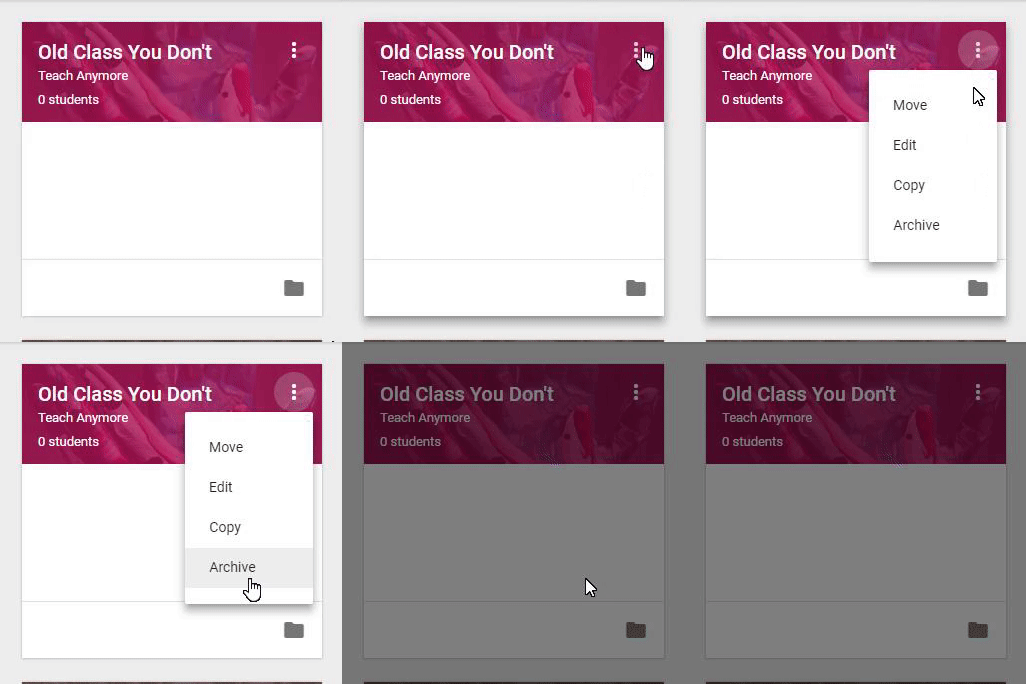
In the upper right corner of each class are 3 dots.

Click the 3 dots.


Image from Gyazo

Choose Archive. Then confirm that you really want to archive the class.


All done!

But wait!

What if you want to get the class back? What if you forgot there was something there that you wanted to re-use for this year? Is all hope lost? Is it gone forever?

Never fear!

On you main Google Classroom page, click on the 3 lines in the upper left corner (affectionately known as "the sandwich") and scroll down to the bottom. 

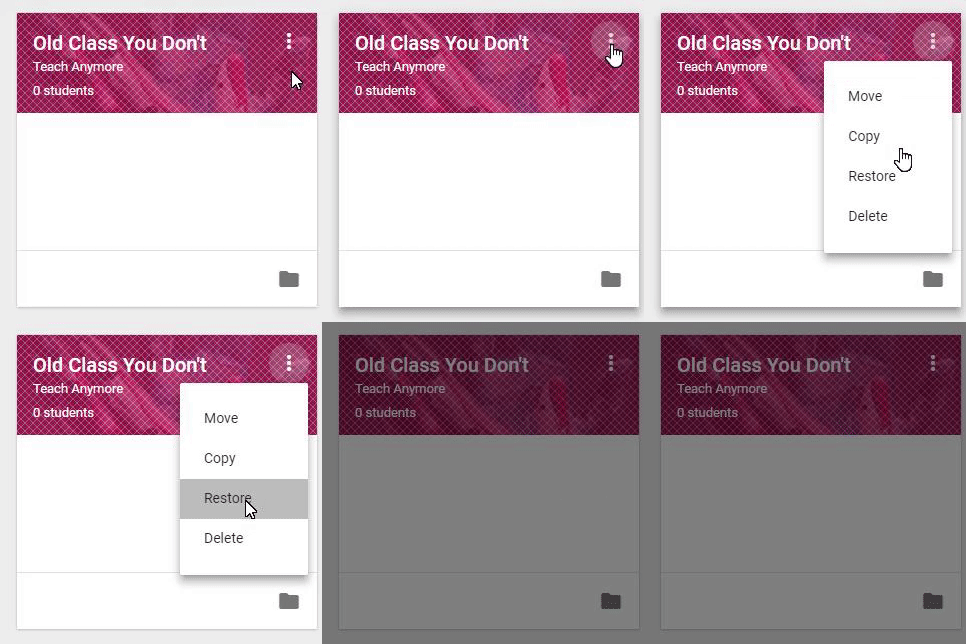
Click on Archived Classes. All of your archived classes from days of yore will appear, kind of cross-hatched and fuzzy, like ghosts from the past through a screen door.

Choose the class you need to resurrect, click on the 3 dots and choose restore.

Image from Gyazo

But remember! When YOU restore the class, it will reappear in any of your old students' Google Classrooms as well. {EDIT: So go to People, click the top checkbox at the top of the Students list. This will choose all of the students. The Actions drop-down menu will become active. Click on the arrow and choose Remove. ]


Friday, March 16, 2018

Get the Google Apps you need directly from your Chrome Menu

As a teacher in a G Suites school, I use Google Apps (Docs, Forms, Drawings, etc.) all the time. And I need fast access to them if I'm going to get anything done.

The following two Chrome extensions, used in conjunction, make my life so much easier. Let me make your life easier, too.

Part One:


The first extension is App Launcher Customizer for Google™ .

Install it, and you can customize the App Launcher that appears on any Google App page in the upper right-hand corner. (It looks like a 3x3 grid of blocks.)


Click on the extension in your Chrome Menu and you'll see this screen.


Just drag all the apps you use into the "My services" window, and all the one that you DON'T want out of the "My services" window back into the "Available" window.

There are an AWFUL LOT of Available apps! Use the Search feature to find the ones you're looking for.

I personally like to keep my App Launcher window clean, so I ruthlessly limit it to 12 icons. Any time a new one comes in, an old one goes out, but you can cram it as full of apps as you wish.


Part Two:

The second extension is App Launcher in popup

After installing this, it will put the app launcher icon directly on your Chrome Menu.


The biggest advantage is now I don't have to be on a Google-related page to access the App Launcher, and now I have access to the apps I need on a daily basis, and only those apps, from anywhere in Chrome.


Monday, November 6, 2017

Supercharge your Google Apps with Add-ons and Chrome with Extensions


ICYMI - From today's Mimi Charnoff Professional Development Day, my list of my go-to Add-ons for Google Apps (Docs, Forms, Slides) and my favorites extensions for Chrome.

REMINDER: Extensions only work in Chrome on a Chromebook, a PC or a Mac. They do NOT work on Chrome on a phone or tablet (iPad, etc.) as they are not true Chrome browsers.


Google Doc Add-ons
Change Case
For those typing mistakes - ALL CAPS all gone
Extensis Fonts
Find precisely the right font
Kaizena
Add voice comments to a shared doc thru Google Classroom
Highlight Tool
Share labeled highlighter categories
Sefaria
Add Jewish texts directly to docs
In an open Google Doc, go to Add-ons.

Google Form Add-ons
123RF Stock Photos
Free photos to insert into Forms
All Questions Required?
For Quizzes - Click when finished
CheckItOut
For keeping track of inventory
Form Publisher
Convert to Doc, Slide, Sheet
Form Limiter
Limit time or number of responses
PaperScorer
Create bubble sheet from form - scan w/ phone to score


Google Slides Add-Ons - NEW!
AdobeStock


Free photos to insert into Slides
ShutterStock
Unsplash Photos
Pear Deck
Create formative assessments and interactive slides
Slides Toolbox
One-click for repeated tasks


Supercharge Chrome with Extensions
Edit Microsoft Office files with converting to Docs, etc.
Save articles to read later
Blocks ads online
Does what it says
Post or push site to Google Classroom
Click and e-mail webpage
Save directly to Keep
Declutters distracting pages
Declutter and open multi-page articles
Create a temp, real-word URL shortcut
New tabs open blank
Double-click on a word for its definition
Turn all your tabs into 1 link page
Translate, transliterate into other languages
On-screen tutorials within Google Apps
If you need to insert foreign accents
Opens Rediker in parallel window from Classroom
Opens up to 20 docs in separate tabs