Wednesday, July 8, 2015

Share Quizlets Directly to Google Classroom


You can now share Quizlets directly to your Google Classroom!

When you've completed the Quizlet, click Share and choose Google Classroom.

It's that easy.

Wednesday, May 27, 2015

Getting creative with pdf files - Part One

The pdf - it's not just for viewing anymore!

I'm going to run through a series on things you can do - how to make a pdf online, how to convert it to something else, how to collate separate pdfs together and separate pages from within a large one, among many other things.


The best piece of freeware out there (one I have been using several times a week for the last 5 years is PDFTK Builder. Get it HERE. (Scroll down to the bottom for the installation file.

The main screen looks like this:


To collate, begin by clicking Add and navigating to your pdf files and click Open. In the example below they are all together in one file, but you can keep clicking Add until you have all the files you wish to bind together.


You can re-position the files with the Move up / down buttons, or remove a file in the middle, etc. When you are ready, click Save As, and name the file (and make sure it's going to the folder you wish).

When it's done collating, the file path will appear at the bottom of the screen.


Friday, November 14, 2014

Checker Plus for Google Drive

Checker Plus for Google Drive is an incredibly useful Chrome extension for anyone sharing large numbers of Folders or Files in Google Drive (like Capstone Supervisors).

This only works with the Chrome browser.

Go to the Chrome Web Store and search for Checker Plus. There are several extensions available for Google apps - Gmail, Google Calendar, and for our purposes, Google Drive.


Click the blue "+ FREE" button


Agree to the permissions. The extension will install.


To enable the extension, click on the icon that will now appear in the upper right corner of your Chrome browser. Agree to give the extension access.


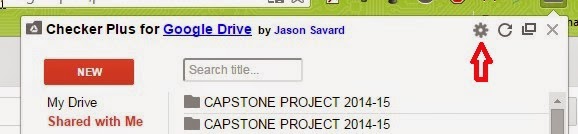
 When you click on the icon now, you will get a small window view of your Google Drive. You can click on "Shared with Me" (That's the same as the new "Incoming")


If you click on "Recent," you can see the most recently shared or updated documents.


And if you click on the little gear in the upper right-hand corner, and open Options, you can choose to get pop up message that will appear in the lower right-hand corner of your computer screen, telling you that an item has been added or edited.


Thursday, October 2, 2014

Group Contacts from Your iPad

Many of you may have noticed that you cannot call up Contact Groups in the iPad mail app, the GMail app or a browser window. Other contacts come up, but not groups.
Okay, I have no idea why this works but it does.
(I tried about 6 different things I found on line and this is the only one that does actually works.)

To e-mail from a group:
Click on this address:

It will open Safari; you may have to log in to your account. 
If you click Compose on this screen, your contacts groups appear.
(They do not if you try to go to a regular browser version of GMail.)

When you start typing your Contact Group's name, it should appear.

Thursday, September 18, 2014

Make Your Own Inspirational (or otherwise) Classroom Posters

Quick Post on a very nice site. Recite This (Click here for the site) is a Web 2.0 site where you can type in any message you want (it even handles Hebrew) and choose from dozens of backgrounds to create a nice looking poster.

Here are two examples:


It's simple to use.

1. Type your quote into the blank space on the home page. (Note: Not every background can handle longer quotes. So if your quote is longer than 6-7 words, some of the backgrounds might be unavailable to you. But whichever ones will work will remain visible.)


2. Scroll through the backgrounds until you find one that looks good to you.


3. Click "Create." A new page will open and you can choose to download the picture, which is saved in a jpeg format.

Check it out and go nuts!

Wednesday, September 10, 2014

HOW Many Calendars Do I Have to Keep Track Of?!!

I don't know about you, but I have all of my classes on my Google Calendar. Plus I have test calendars for 9th, 10th, 11th and 12th grades. (Yes, I teach them all.) Plus meetings. Plus school events. Plus, as a parent, the Kindergarten calendar. And once in a blue moon, I even have a personal life.

But if I am looking at all those calendars I go into sensory overload. In truth, usually all I want to see are my classes and scheduled meetings.

I recently started using the calendar app Up To on my Android. (It's available for iPhone as well.) It allows me to have my primary calendars (classes and meetings and life events) as the default visible calendars (what they call the "front" calendars) and with a tap, the calendar expands, accordion-like, to show the secondary calendars (test schedules, etc.) It is rapidly becoming my "go-to" phone calendar app.

Here's their short video demonstration:


This is a link to their website, with links to the Google Play store (for Android) and Apple's App Store (for iPhones).

Tuesday, September 9, 2014

Don't Forget to Sign Out of the School's iPads!

In a perfect world, all the students would have their own personal devices (tablets, laptops, Chromebooks, iPhones) and they would remain logged into their personal Google Drive, Dropbox and Gmail accounts all day long.

But in the real world (specifically, in our school) our students are sharing iPads. Please remind them to sign out of any app that gives access to file (Google Drive, Dropbox) or e-mail. Otherwise, someone could delete needed material or send a malicious e-mail in another student's name.

Below is a tutorial with step-by-step directions to signing out of Google Drive when your class is done.

Please make this an established routine in your classrooms, and don't wait until the bell rings. Set a timer (on the iPad if you wish!) to remind students to wind down before the end of class and sign out.